May 19

Microsoft Cloud Security Readiness Tool

Posted in Microsoft

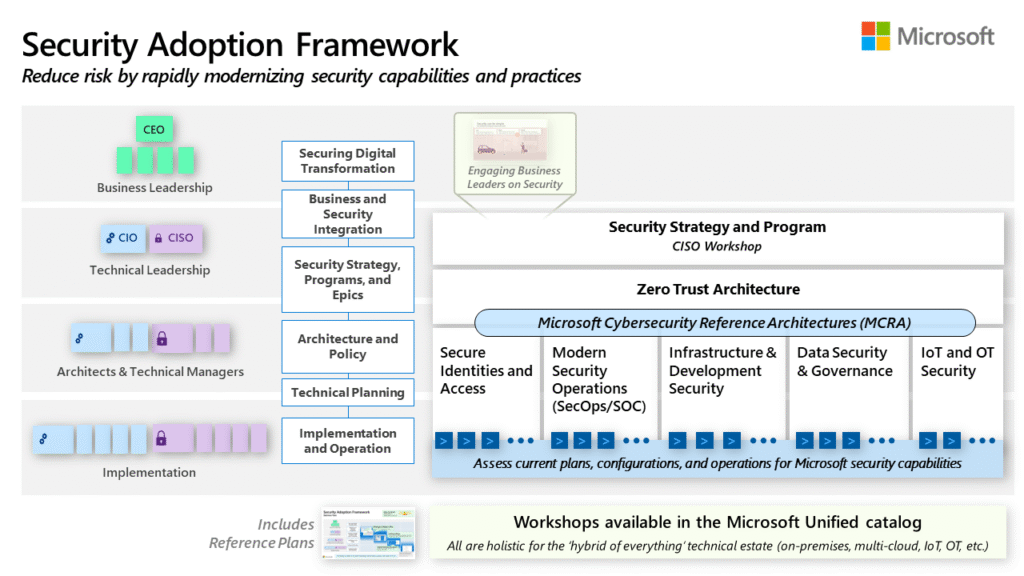
Microsoft cloud security readiness tool: basically assesses your network infrastructure and produces a non-financial report. So, you get the idea if you can move to Cloud services or not. This framework will ask you 27 questions in six categories, and the screenshots below will give you a small perspective of the assessment.

The decision to deploy cloud computing is a strategic one for each company. Many organizations are curious to learn more about their IT environments and evaluate whether deploying cloud services is appropriate.

Companies who are assessing their own network establishment, are already in the cloud in some way. Primarily if they have a web server that serves their customers through some portals like iBanking or such…can you imagine that they are already providing  cloud services. And yes they are. Companies are showing interest to serve more and more (customers) by integrating their CBS or core software’s which has customer info or transactional info, requesting data momentarily. Focusing on that the integration with their data with their network infrastructure always giving them the upper hand to cater to their customers need.

Facilitating the same, this short survey that assesses your current IT environment with regard to systems, processes, and productivity.  The survey information creates a custom non-commercial report that provides recommendations on your IT state and helps you evaluate the benefits of cloud computing.

CloudSecurityReadinessToolCSRT1 CSRT2 CSRT3 CSRT4 CSRT5 CSRT6 CSRT_Report

An Introduction to Designing Reliable Cloud Services: Learn what Microsoft is thinking about cloud service reliability and how organizations can work together to improve it.

image

Deploying Highly Available and Secure Cloud Solutions: This whitepaper provides insight on deploying robust cloud solutions to maintain highly available and secure client connections. It highlights real-world examples to discuss scalability issues.

The Microsoft Approach to Cloud Transparency: Learn how Microsoft is using the cloud-specific framework of the Cloud Security Alliance (CSA), known as the Security, Trust & Assurance Registry (STAR) for its cloud solutions.

Using a well thought-out controls framework, organizations can avoid most of the costs related to engaging outside expertise for selecting an appropriate cloud provider, and rely instead on combined efforts that represent years of expertise in the field.

Cloud Trust Videos

More cloud videos

More Cloud Resources

May 19

Microsoft Virtual Machine Servicing Tool 3.0

Posted in Microsoft

Virtual Machine Servicing Tool 2012 is designed to work with System Center 2012 –Virtual Machine Manager (VMM), System Center 2012 Configuration Manager and Windows Server Update Services (WSUS) 3.0 SP2. With this free tool you will be able to update your offline virtual machines, templates, and virtual hard disks with the latest operating system and application patches. This new version of Virtual Machine Servicing Tool 2012 (VSMT) which is a solution accelerator provided by Microsoft for FREE. This tool is the next version of the previous VSMT 3.0.

In technical terms, the VMST is a patch management solution which can be used to update stopped or saved state VM’s on a Hyper-V or Hyper-V R2 host. And also VM Templates, offline VM’s and offline Virtual Hard Disks(VHD) stored in the VM Library of System Center 2012 Virtual Machine Manager (SCVMM). In order to achieve this, the tool applies updates to the VHD using Servicing Jobs. The tool also supports updating the Windows 7 and Windows Server 2008 R2 operating systems.

Servicing Jobs, which uses Windows PowerShell to start the VM, update the VM and either shuts down the VM or brings the VM back into a saved state. Offline VHD’s are updated by mounting them to a running host and updating it using the Deployment Imaging Servicing and Management (DISM) tool.

VMST works seamlessly with other Microsoft technologies. VMST is designed to work with Microsoft System Center Virtual Machine Manager (SCVMM) 2008 or SCVMM 2008 R2, and with the following technologies:

  • Windows Server Update Services (WSUS) 3.0 SP1 or WSUS 3.0 SP2.
  • System Center Configuration Manager (SCCM) 2012, 2007 SP1, SCCM 2007 R2, or SCCM 2007 SP2.

VMST


What’s new in the Virtual Machine Servicing Tool 2012?

If you’ve used version 3.0, you already know that it offers free, tested guidance and automated tools that let you safely service offline virtual machines in your SCVMM library. VMST builds on this functionality, adding powerful new features designed to streamline the process of keeping your offline virtual machines, templates and VHDs up-to-date with the latest operating system and application updates, without introducing vulnerabilities into your IT infrastructure.  VMST helps you effectively manage the workflow of updating your offline virtual machines according to their individual needs. Using VMST, customers can also keep users productive during updates and maintenance of physical hosts: VMST 3.0 automates the servicing of Windows Server 2008 R2 Hyper-V host clusters, leveraging live migration, and is also an integrated option for VMST 2012.

VMST 2012 helps you more effectively—and safely—manage the workflow of updating you offline virtualization environment. Using VMST 2012, you can now service:

  • Offline virtual machines in a SCVMM library.
  • Stopped and saved state virtual machines on a host.
  • Virtual machine templates.
  • Offline virtual hard disks in a SCVMM library by injecting update packages.

Download This Solution Accelerator: Click here to download the Virtual Machine Servicing Tool 2012.

May 2

Microsoft Windows Server 2012 Upgrade Path

Posted in Microsoft

Domain controllers that run 64-bit versions of Windows Server 2008 or Windows Server 2008 R2 can be upgraded to Windows Server 2012.

You cannot upgrade domain controllers that runs on Windows Server 2003, 32-bit versions of Windows Server 2008. To replace them, install domain controllers that run Windows Server 2012 in the domain, and then remove the domain controllers that are running on Windows Server 2003. Bottom line is you cannot upgrade or migrate your Windows Server 2003 to Windows Server 2012. But I am not talking about third party tools here.

Editions you could be running currently

Upgrade possibilities

Windows Server 2008 Standard with   SP2ORWindows Server 2008 Enterprise   with SP2 Windows Server 2012 StandardORWindows Server 2012 Datacenter
Windows Server 2008 Datacenter   with SP2 Windows Server 2012 Datacenter
Windows Web Server 2008 Windows Server 2012 Standard
Windows Server 2008 R2 Standard   with SP1ORWindows Server 2008 R2 Enterprise   with SP1 Windows Server 2012 StandardORWindows Server 2012 Datacenter
Windows Server 2008 R2 Datacenter   with SP1 Windows Server 2012 Datacenter
Windows Web Server 2008 R2 Windows Server 2012 Standard

For more information about supported upgrade paths, see Evaluation Versions and Upgrade Options for Windows Server 2012.

Please be mindful that you cannot convert a domain controller that runs an evaluation version of Windows Server 2012 directly to a retail version.

Due to a known issue, you cannot upgrade a domain controller that runs a Server Core installation of Windows Server 2008 R2 to a Server Core installation of Windows Server 2012. The upgrade will hang on a solid black screen late in the upgrade process. Rebooting such DCs exposes an option in boot.ini file to roll back to the previous operating system version. An additional reboot triggers the automatic rollback to the previous operating system version. Until a solution is available, it is recommended that you install a new domain controller running a Server Core installation of Windows Server 2012 instead of in-place upgrading an existing domain controller that runs a Server Core installation of Windows Server 2008 R2. For more information, see KB article 2734222.

Apr 29

DELL 12G Launch Event

Dell launched their range of 12G PowerEdge Servers on 29th of May 2012. Speakers from Dell-Microsoft-Intel presented to a select group of CXOs, after that Dell-Microsoft-Intel presented to over 200 IT managers from different industries from EPG, PS and SMS&P alike. We had a great event that day, and so much successful conversation lead to win over compete products.

Microsoft Part: Microsoft in the Cloud with System Center

By the way, this was my first public audience of such proportions.

Some pictures from the event:

And part of the audience

Apr 23

DELL / Intel / Microsoft Community Connect for SMB Clients

Hello Folks, Just sharing some event pictures with you guys out there:

This event was organized primarily by DELL in conjunction with Intel and Microsoft altogether focusing only on SMB clients. The crowd was very much live and created a good ripple around themselves where they were interested on latest software telephony services. Which includes Microsoft Lync Server 2013. I was soo excited to let them know that Lync is already a milestone in your infrastructure which could provide you with the following:

  • Enterprise Voice (Lync to PSTN and vice versa).
  • IM, Presence and Persistent Chat.
  • Multi participants Video Conferencing that can be used to train remote office users on specific PowerPoint Decks.
  • Share & Chat with a Shared PowerPoint Session.
  • ChalkTalk with a Shared Whiteboard.
  • Clients for Android, iOS etc.
  • Contact Card Support.

And finally the event was very successful in terms of participation and a great day for all of DELL, Intel, and Microsoft’s part. Audience was more than 150.

comments: 0 » tags: , ,